![Reveel-Logo-NoTagline-RGB-2.png]](https://help.reveelgroup.com/hs-fs/hubfs/Reveel-Logo-NoTagline-RGB-2.png?height=40&name=Reveel-Logo-NoTagline-RGB-2.png)
In this article, we’ll guide you through the steps to download your FedEx invoices from the FedEx Billing Online portal.
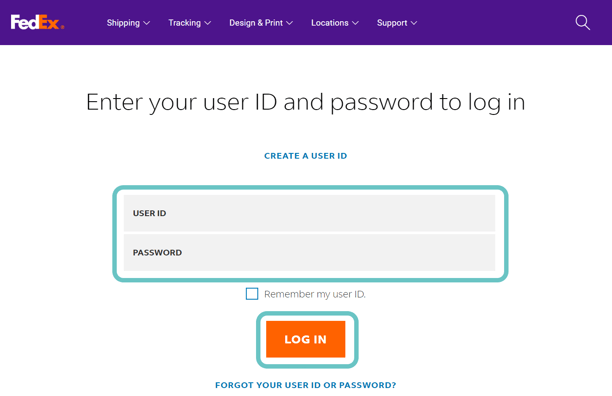
- Go to the FedEx Login Page and enter your username and password.
- Click on the Login button at the bottom to proceed
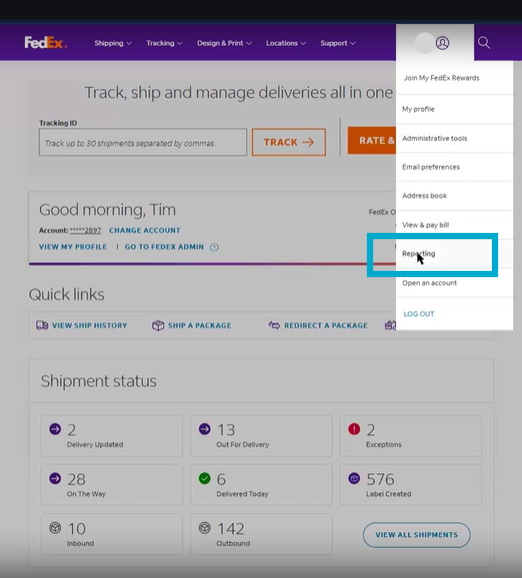
- Once logged in, Click on your Profile icon on the upper right and select "Reporting"
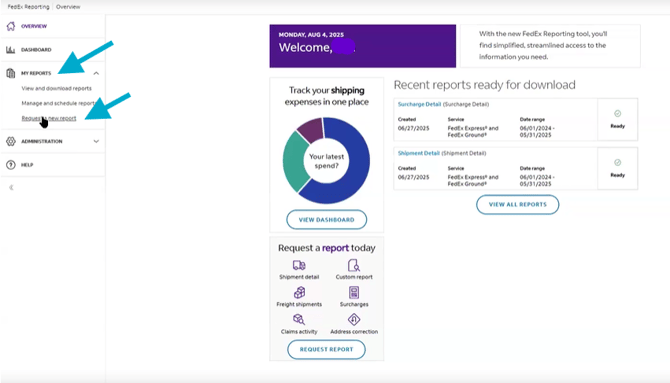
- On the left ribbon menu, select on "My Reports", then "Request a new Report"
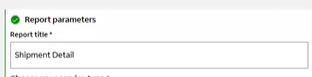
- We first need to generate the Shipment report. On the reporting title, type in "Shipment detail".
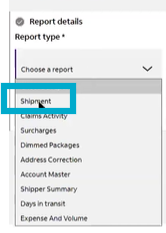
- On the reporting type, select "Shipment"
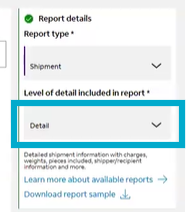
- And on the level of detail field, Select "Detail"
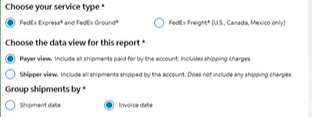
- For the service type, select "FedEx Express and FedEx Ground". For data view, select "Payer view". And Select "Invoice date" for Group Shipments
- As you select the account number, first go to "Views", then select "Global entity". Then put a check on the checkbox of the account number there.
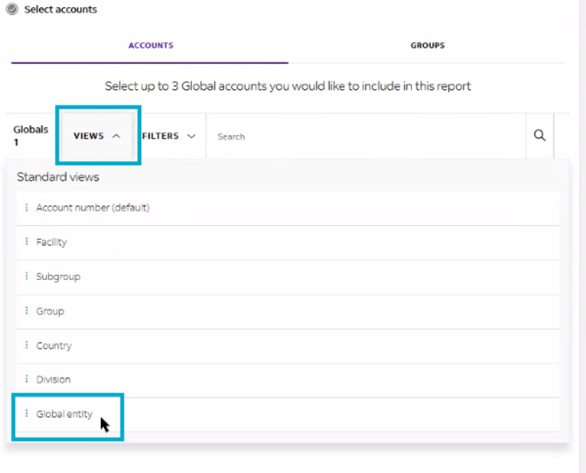
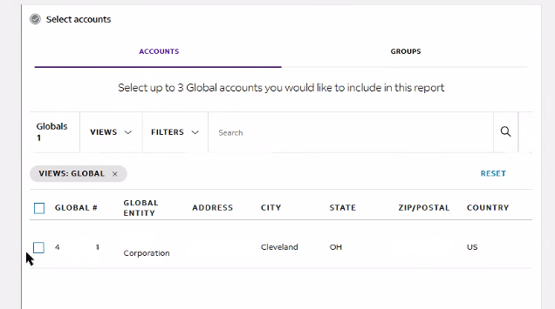
- For Delivery options, select "One-Time" and select the date where it will cover 12 months period. And choose "Excel" as the data format.
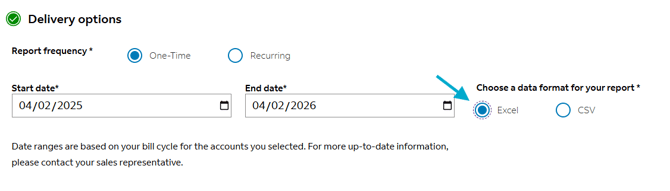
- Once done, click on "Review and Finish"

- Review your details and click "Submit"
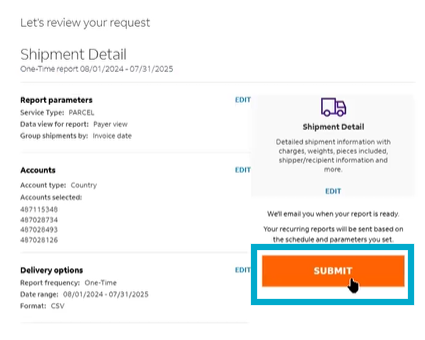
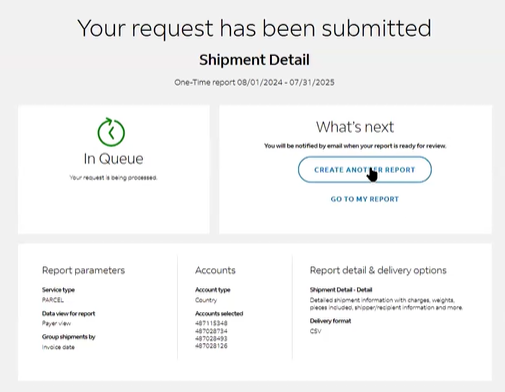
- We'll next need to generate the report for Surcharges. So from here we can click on "Create another Report"
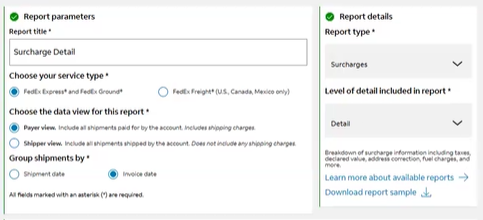
- Type in "Surcharges Detail" on the Reports title. For the service type, select "FedEx Express and FedEx Ground". For data view, select "Payer view". And Select "Invoice date" for Group Shipments. On the Reporting type, select "Surcharges" and select "Detail" on the Level of detail field.
- As you select the account number, first go to "Views", then select "Global entity".
- Then put a check on the checkbox of the account number there.
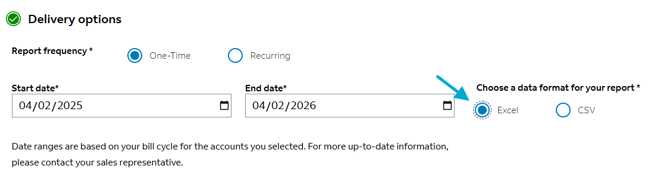
- For Delivery options, select "One-Time" and select the date where it will cover 12 months period. And choose "Excel" as the data format.
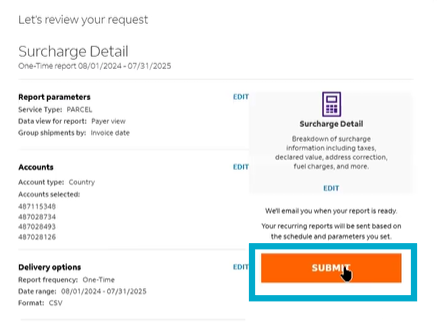
- Review your details and click "Submit"
- Once done generating the Shipment and Surcharge report, you can select "Go to my Report"
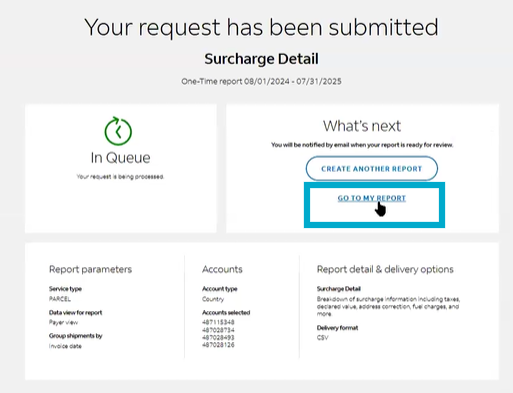
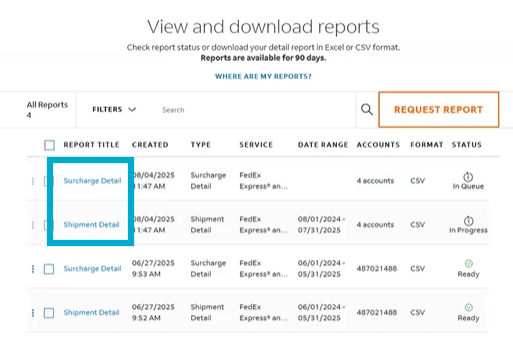
- The reports can have a status of "In Progress" or "In Queue". But once it shows the status of "Ready", you can click on your Report's title and download accordingly.